Kitchen purchasing matrix: what it is and how to build it
The matrix is the full list of what a kitchen buys: product, unit, storage area and supplier. Not a menu, not recipe cards. Without it an order is put together from memory.

The matrix is a list of everything a kitchen buys: the product, the unit, the storage area and the supplier. People call it the product matrix, the kitchen nomenclature, or simply the purchasing list.
Not to be confused with the technologist's “raw materials matrix”: that is a table of “an ingredient — how many dishes it appears in”. It is calculated for turnover and menu balance, not for placing an order with a supplier.
Why a kitchen needs a separate purchasing list
Every restaurant has a list of what the kitchen buys. The only question is where it lives. Usually — in the head chef's head and in the sous chef's notebook, and in two different versions at that. As long as the same person does the ordering, this works. Then he goes on holiday, and the order is put together by someone who doesn't remember the parchment, the gloves and the parsley.
The matrix is that same list, taken out of someone's head: everything you buy at all, with a unit of measure and a storage area. You build it once, then only add to it. This is what every day's order is built from — not from memory, but by walking the shelves.
The matrix is not a menu and not recipe cards
Three different lists that often get confused:
- The menu — what you sell to the guest.
- Recipe cards — how much of what goes into one dish.
- The matrix — what you buy from suppliers.
The matrix is always wider than the menu. It has cling film, vacuum bags, gloves, detergent, charcoal for the grill — everything you pay a supplier for, even though the guest never sees it. Cling film forgotten on the list stops your prep just as reliably as forgotten meat.
Units of measure: where people get it wrong most often
The most common mistake is writing the unit the way the supplier says it, not the way you count it at receiving. The supplier delivers cream in a case of twelve cartons, but what matters in your kitchen is litres. If the list says “case”, then a month later nobody can tell you how much cream went into sauces.
The unit of measure in the matrix is the one you receive and count in. Not the one that is convenient for the supplier to ship in.
The second trap is an item sold both by weight and by the piece. Lemons are sold both ways. Decide once how you count them, and stick to it: otherwise comparing prices over a month becomes impossible.
Category and storage area are different things
When a list arrives from a supplier as a file, it has categories: “Vegetables”, “Dairy”, “Dry goods”. That is his way of sorting goods in his price list. It has nothing to do with your storeroom.
Look at what happens with a single category:
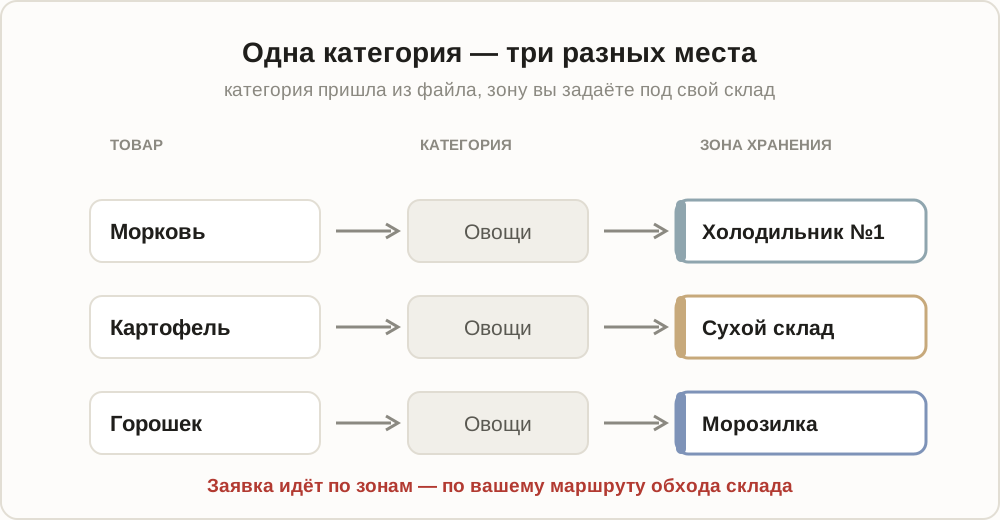
Carrots sit in the fridge, potatoes on the dry shelf, green peas in the freezer. All three share one category: “Vegetables”. If you build an order by category, you will run back and forth across the kitchen and still miss something.
An area is a place in the storeroom. A shelf, a fridge, a freezer, the bar, the cupboard with the chemicals. You define the areas yourself, in the order you actually walk the kitchen with your phone. Then the order becomes a walk: open an area, go along the shelves, put in the quantities, move on.
How to build the matrix in artelFood
Three ways, and they don't get in each other's way — you can start with a file and add the rest one by one.
Upload a file
The fastest way if you already have a supplier's price list or an export from your previous system. There is an upload button in the matrix section: you pick an Excel file, the app finds the columns itself — name, unit, category, price — and shows you what it understood before it saves anything.
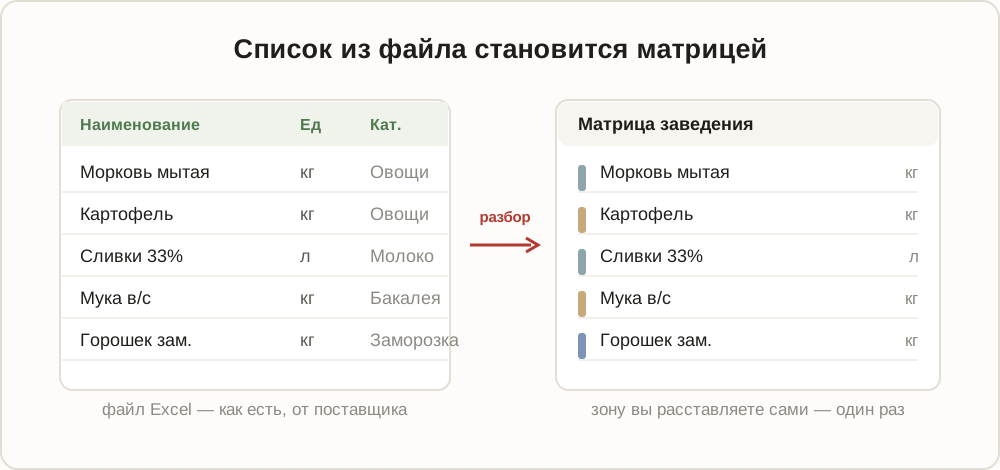
You can name the header row however you like and move the columns around. The file is read even if there is no header at all, and section rows like “Vegetables” and “Fruit” are skipped. Before saving you see the result and can correct anything that was read wrong.
Add items one by one
Through the supplier's card, the “Range” section: you enter the goods you take from that particular supplier. This is convenient for adding new items as you go — a new product arrived, you write it down straight away. More on this in the article about suppliers.
Take it from the shared database
The search button looks through the whole database — both what other restaurants buy and supplier price lists. You see a ready name with its unit of measure, and next to it a price, if the item appears in someone's price list. This is noticeably faster than typing, and there are fewer typos: “Cream 33%” is written the same way by everyone, instead of five different ways.
How to lay out the areas
Areas are created with the ▦ button in the matrix section. After that each item is assigned an area — one at a time or in a group.
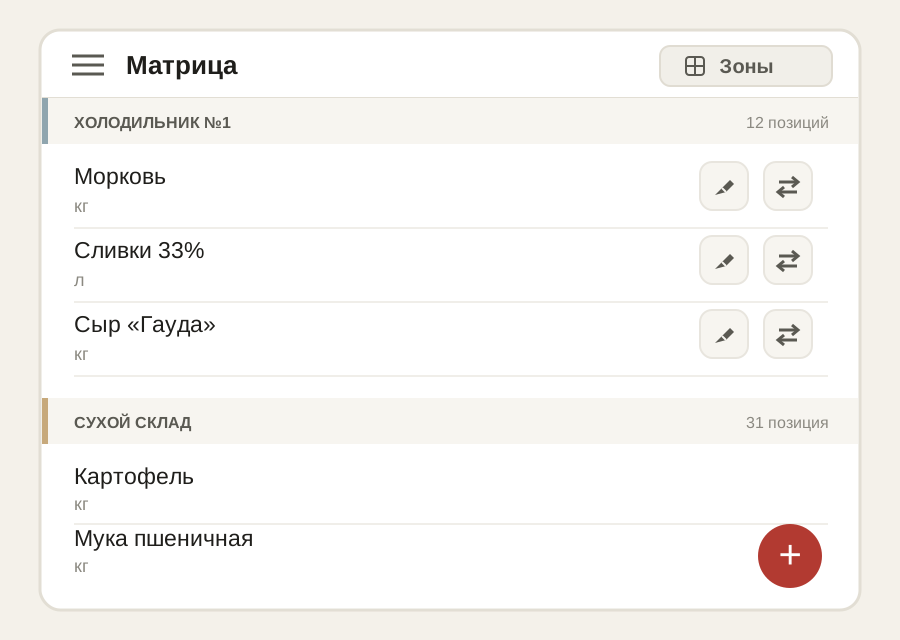
The order of the areas is your route. If you usually start with the fridge by the door, then go to the freezer and finish at the dry store, lay them out exactly like that. The app will run the order in that sequence and offer you “Next area”.
Name the areas the way you say them out loud: “fridge by the sink” is clearer than “Cold-2”. The list is read by cooks, not by accounting.
If there are a great many items
Don't try to enter everything in one evening. Take what you order every week — usually thirty to fifty items, and they account for almost all your turnover. The rest will add itself: as soon as you need something, it lands on the list when you order it.
The matrix is a living document. A dish left the menu, a supplier changed, a seasonal item appeared: it can be edited at any time, there is no such thing as a “final version”.
Common questions
One product from two suppliers. That's fine: there is one item in the matrix, and its supplier is whoever you buy it from right now. You can switch in one tap, and the price history is kept — so later you can see who worked out cheaper.
Seasonal items. Don't delete them for the winter. An item with no orders simply stays out of the way: it doesn't get into an order until you enter a quantity.
Should I add dishes. No. The matrix is purchasing, not production. Your own prepared items don't belong in it.
What's next
Once the matrix is built and laid out by area, you can put together an order by walking the storeroom. And when the delivery arrives, you'll need receiving with shortages and damaged goods.
How a purchasing matrix differs from a product range matrix
A product range matrix is a retail term: it is what a shop sells, sorted into categories and roles. A purchasing matrix is what a kitchen buys in order to cook the dishes on the menu.
The difference isn't in the words. In a range matrix an item exists for revenue, and it is judged by demand. In a purchasing one it exists for the dish: a product has a storage area, a supplier, a purchase unit and a substitute for when it doesn't arrive. That is why it is built from shelves and suppliers, not from sales.
One more difference matters in practice: a range matrix is reviewed once a season, while this one changes every week — a supplier left, a new product appeared, something went out of stock. A list that lives in someone's head or in an old file goes stale faster than it can be printed.
Search understands what you meant
Names in the matrix are rarely short: “Penne pasta, Makfa 450 g, Russia”. Typing that in one go is impossible, and search used to look for exactly that sequence — and found nothing.
Now it forgives three things:
- Word order. “red onion” finds “Onion, red”, and “penne makfa” finds that long name. Any two words you remember are enough.
- Typos. “carott” finds “Carrot”, “parmezan” finds “Parmesan”. Short words are not forgiven: “oil” and “owl” differ by one letter, but they are different things.
- Spelling variants. One letter of the Russian alphabet is often typed in two ways. Both spellings count as the same word, so an item saved one way still turns up when you type the other.
The most exact match comes first: type “carrot” and you get “Carrot”, not “Carrot, washed”.
It works everywhere names are searched: on the order form, in the matrix, when adding a new item, and on the site. In the app — even without a connection.